Introduction
Working as a security engineer, I had a request to provide developers access to internal dev sites for testing. These sites are only reachable from an intranet — and we’ve locked down the instances/containers to SSH-only access. The intranet is accessible via VPN, but that doesn’t solve needing to reach services on non-SSH ports.
What do we do?
Problem Statement
Balance developer access to instances and containers with maintaining the security posture of the current network. Enable efficient testing and development without introducing new vulnerabilities.
Solution
The VPN requirement for intranet access stays — that’s non-negotiable. What we can change is the access management on the development network side.
Example: development environment in a VPC with public and private subnets:
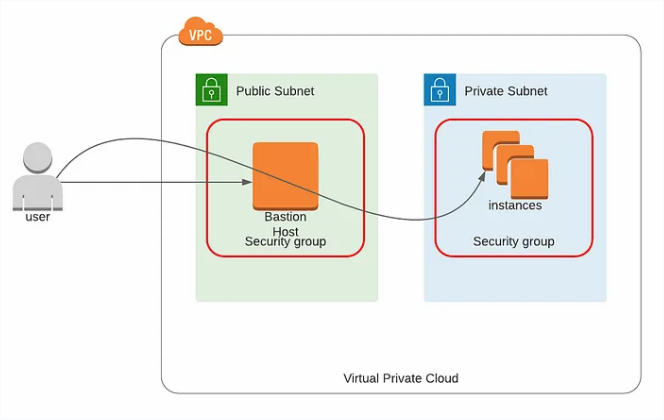
The developer has SSH access to a Bastion host, which has access to private subnet instances. Only port 22 is open on those instances via NACLs.
What we need:
SSH Tunnel
SSH tunneling creates a secure encrypted connection between two machines through which data is forwarded. Once established, data sent to the local port is encrypted by SSH and forwarded through the tunnel to the remote port.
More detail on how it works
- The client initiates an SSH connection, specifying local and remote ports for the tunnel
- Any data sent to the local port is encrypted by SSH and forwarded to the remote port on the server
- The server decrypts and forwards data to the destination service
- The response travels back through the encrypted tunnel to the client
Configuration
Many developers use PuTTY — I don’t. I use plain OpenSSH with a ProxyCommand for maximum portability (some clients have outdated OpenSSH without newer forwarding options).
Build the Config
~/.ssh/config:
Host 1.1.1.*
    User dev-user
    IdentityFile /path/to/dev-private-key.pem
    ProxyCommand /usr/bin/ssh -W %h:%p bastion

Host bastion
    HostName [bastion public IP]
    User bastion-user
    ForwardAgent yes
    IdentityFile /path/to/dev-private-key.pem

Host *
    ServerAliveInterval 60
    ServerAliveCountMax 3
Config breakdown:
- Host 1.1.1.* — matches all dev instances in that subnet
- ProxyCommand — routes through bastion using
-W %h:%p(direct TCP forward)
- ProxyCommand — routes through bastion using
- Host bastion — jump box with public IP and credentials
- ForwardAgent yes — optional; allows the remote to use your local SSH agent
- Host * — global keepalive settings to prevent timeout
The Dynamic Tunnel
SSH to the machine normally gives terminal access — that doesn’t solve the web service problem. Instead, open a dynamic port forwarding tunnel:
ssh -D 9090 1.1.1.23- -D 9090 — creates a SOCKS proxy listening on local port 9090
- 1.1.1.23 — the dev instance (routed through bastion via the config above)
This creates a SOCKS5 proxy on localhost:9090. Any app configured to use it will route traffic through the SSH tunnel to the dev instance. To reach a web service on port 80/443, you’d hit localhost:80 or localhost:443 from Firefox.
The tunnel must be running before trying to browse through Firefox.
Firefox SOCKS Configuration
Enable the SOCKS Proxy
Open Firefox Settings and search for SOCKS:
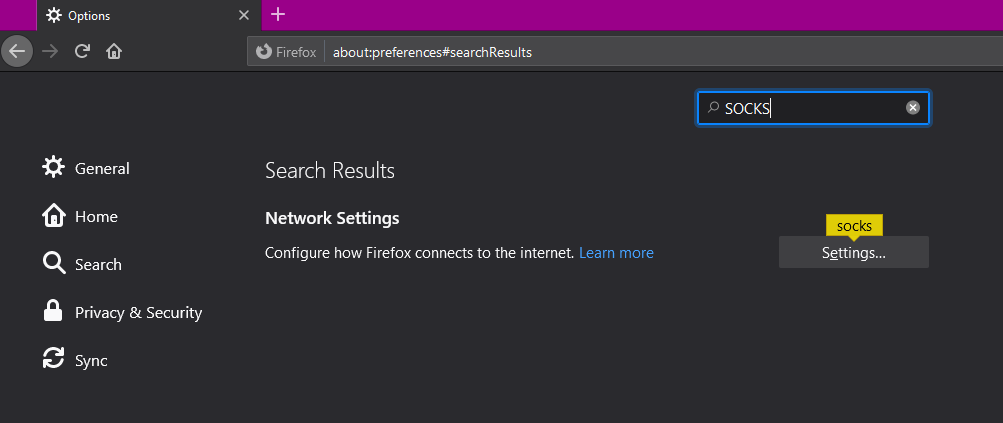
SOCKS Settings
Check Manual proxy configuration and configure:
- SOCKS Host:
localhost(or127.0.0.1) - Port:
9090 - SOCKS v5 selected
Leave other settings default.
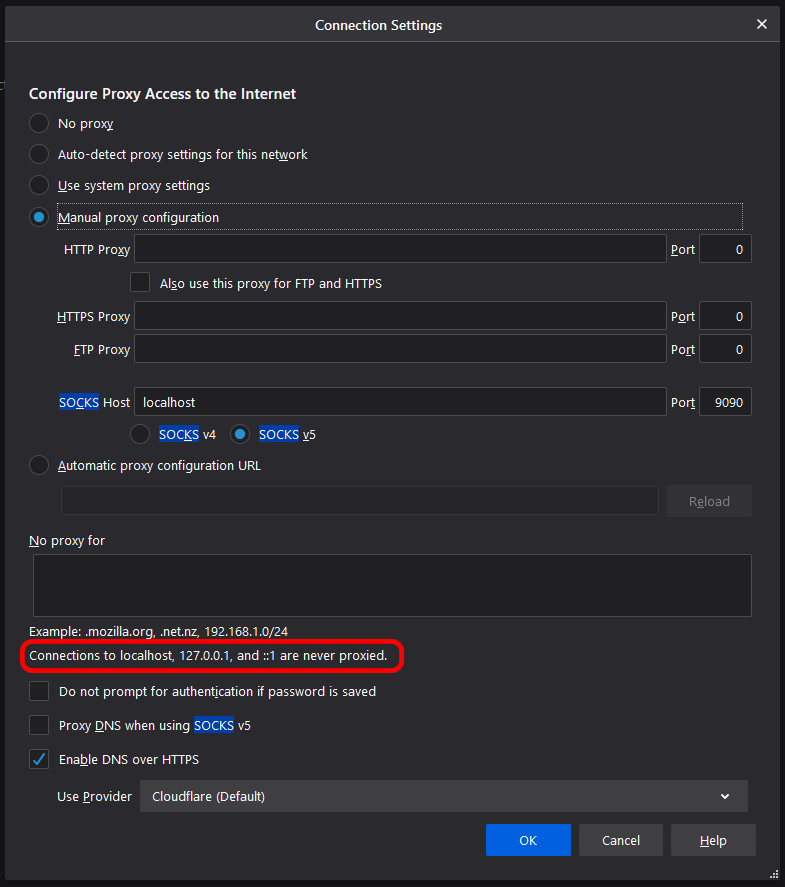
Note the callout: by default Firefox won’t proxy localhost calls. We need to change that.
Allow Proxy of Localhost
Navigate to about:config in Firefox and search for:
network.proxy.allow_hijacking_localhostToggle it to true.
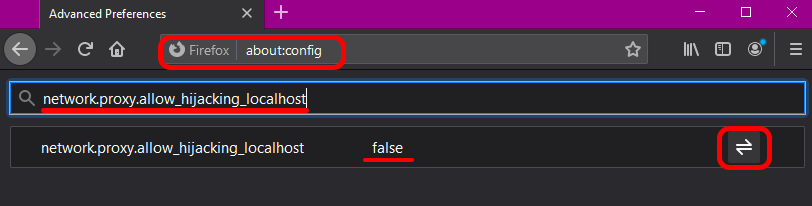
Conclusion
After this setup, you can reach any service published on the dev instance — without changing the network security posture at all. Developers can interact with services running on the instance as if they were on the same local network, routed securely through SSH.